How do I use the Major League Season Package?
Once you have purchased and activated the Major League Rosters (see How to Purchase / Activate),
you can start taking advantage of the features the package provides. You will know your package is active when the Buy button becomes a refresh
arrow button on the Options -> Add Ons screen.
When you have first activated the Package, the text above the Refresh button will say New Data.
This means that there is new data on the server that doesn't exist on your device and that pressing the refresh
button will download that data to your device.
|
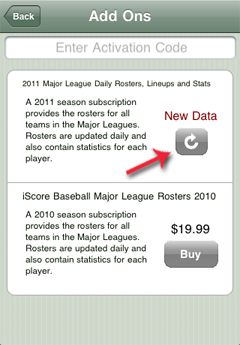 |
When you press the refresh arrow button, the most current rosters will be downloaded to your device. Major League
Rosters are updated daily, early in the morning and you can come back to the Add Ons screen at any time to
retrieve the lastest data.
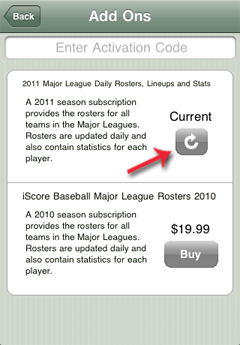
If the text above the refresh arrow button says Current, then there are no new
updates available and there is no need to press the refresh button. If the text above the button says New Data then
there is new data available for retrieval.
|
 |
One of the most time saving aspects of the Major League Season Package is the Sync feature.
To use the Sync feature, create a Major League
game by going to the Game Manager and pressing the Add or + button. Select the two Major League teams and create the game.
Once the game has been created, select the game from Game Manager and press Play in the upper right of the Game Info
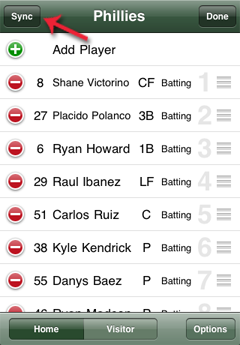
screen. This will take you to the Starting Lineup screen. The Sync button appears in the upper left corner of the Starting Lineup
screen for Apple devices and the lower left corner of the screen for Android devices.
The Sync button will become active
approximately an hour before the actual start of the game. The timing is dependant on when the teams' coaches make their
lineups available for that day. When the Sync button is active, press the button to retrieve the Starting Lineup for the home team,
then switch to the visitor team by changing the selector on the bottom and Sync the visitor team as well.
|
 |
|
|
Return to FAQ
|
|